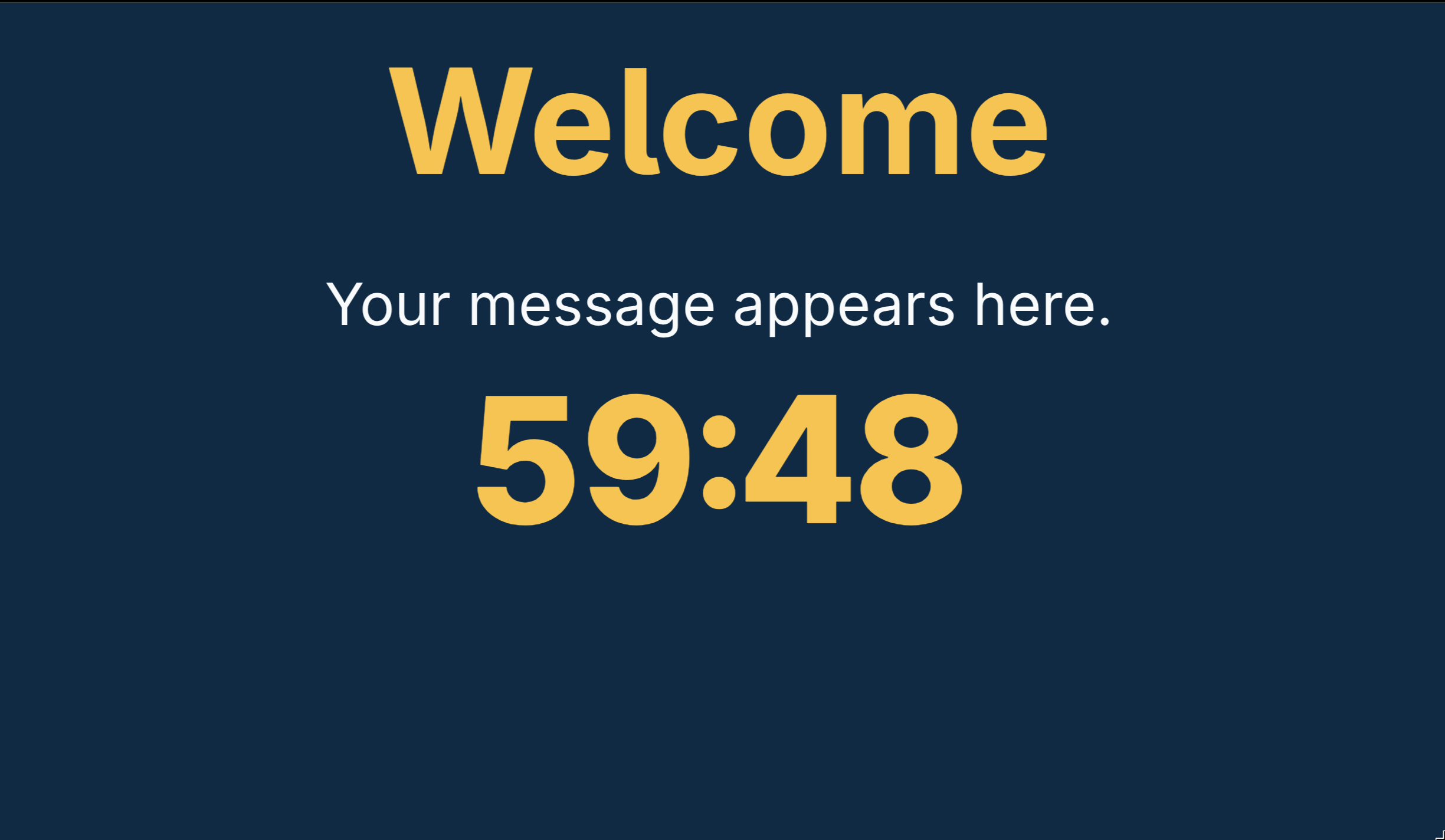
A screen with character.
Set your title, colours, logo and background. A big, clear countdown keeps the team in the story, not looking at a generic stopwatch.
DISPLAY + TIMERORBPUZZLES / MADE FOR ROOM MAKERS
ORBPuzzles gives your escape room a screen that feels part of the game. Timers, hints, sounds and live room controls — on a Raspberry Pi or the computer you already have.
Public guides. No account. No checkout. Just get building.
01 / THE EXPERIENCE
From the first briefing to the final countdown, bring your display and game-master controls together.
Set your title, colours, logo and background. A big, clear countdown keeps the team in the story, not looking at a generic stopwatch.
DISPLAY + TIMERSend hints, play sounds, pause the timer and adjust time from an admin browser on the same trusted network. The screen updates live.
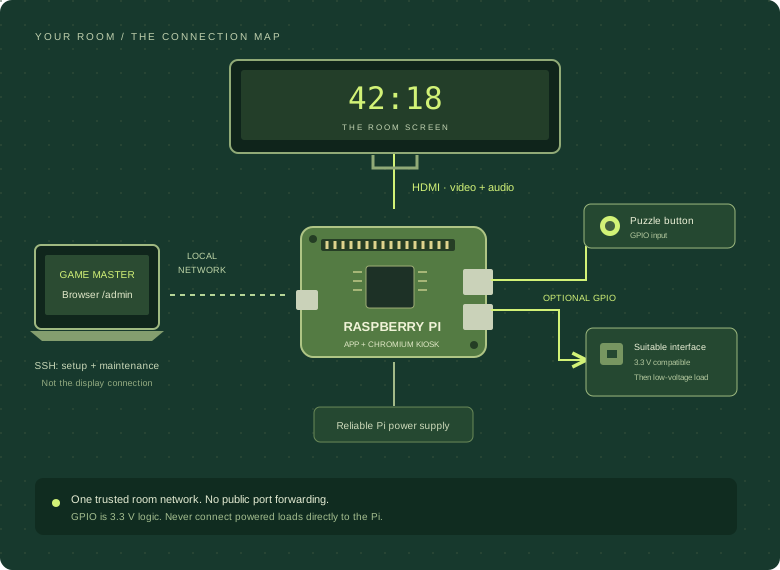
LIVE ROOM CONTROLSOn Raspberry Pi, connect a puzzle-complete button or configure GPIO outputs through suitable interface hardware. Small inputs, memorable moments.
OPTIONAL PI GPIOTHE VIEW FROM BEHIND THE SCENES
While the team watches the game screen, you run the session from ORBPuzzles’ admin panel. Check remaining and elapsed time, send announcements and saved hints, pause the game, or mark the room complete.
Actual admin screenshot. Monitor power is shown as unavailable on a non-Pi computer.
Get your control room running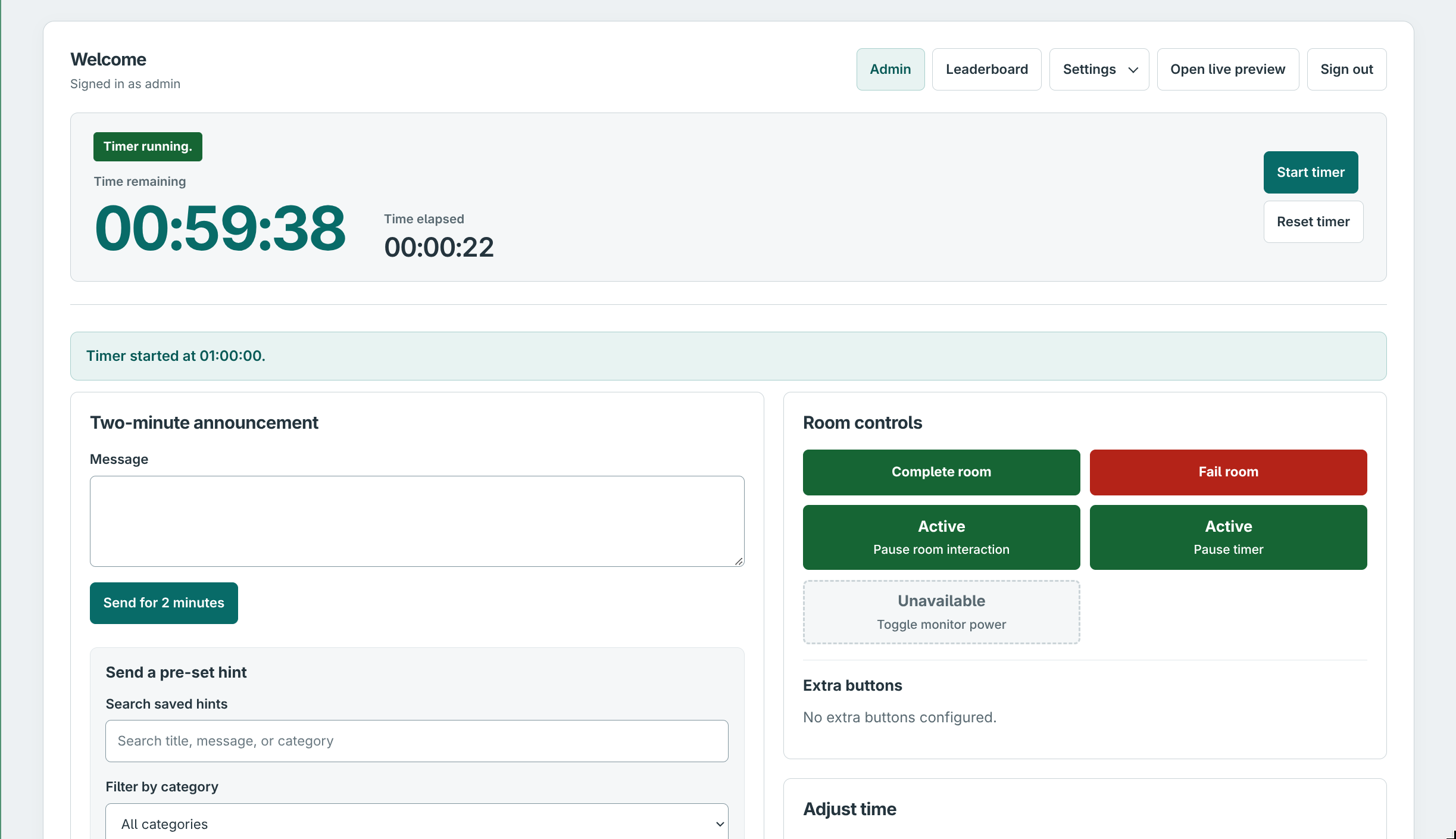
MAKE THE DISPLAY YOURS
Change the heading, welcome and result messages. Pick your background and accent colours, upload artwork and a logo, and set the next game’s starting duration — all from the display settings.
Explore game screen customisation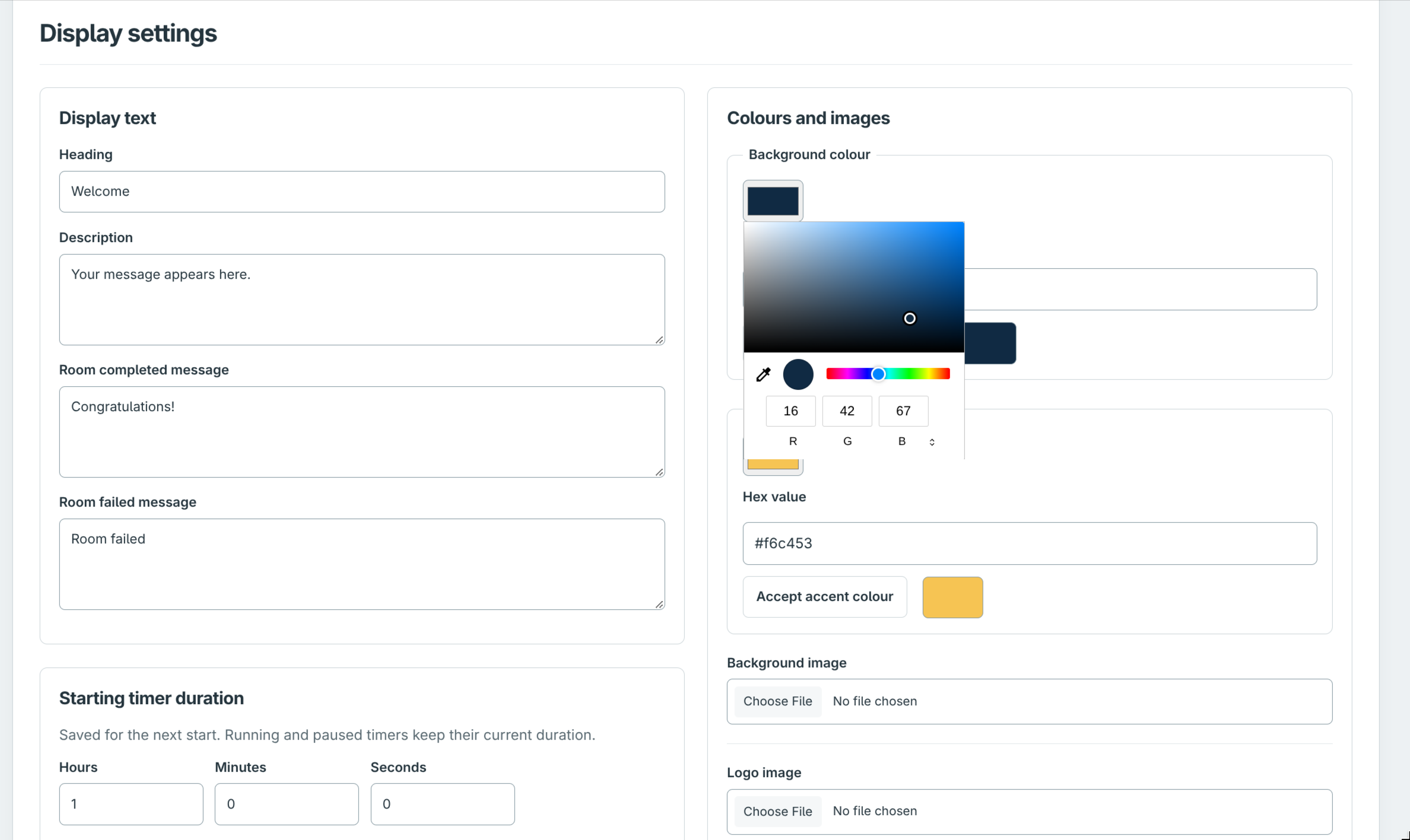
INSIDE ORBPUZZLES
Clues, atmosphere, physical interactions and recorded results — explore the actual app screens.
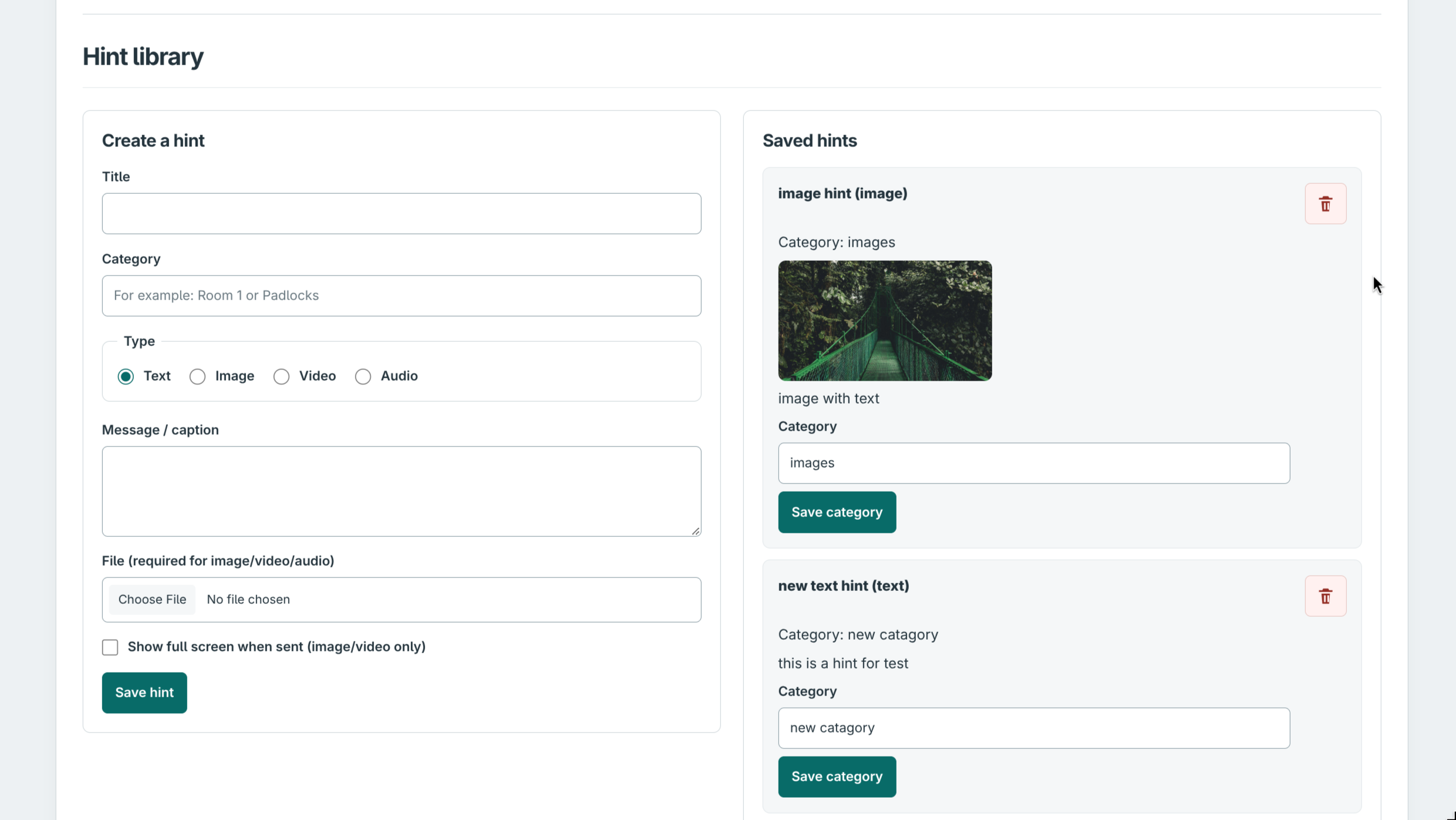
Keep text, image, video and audio clues in a searchable, categorised library.
Explore the controls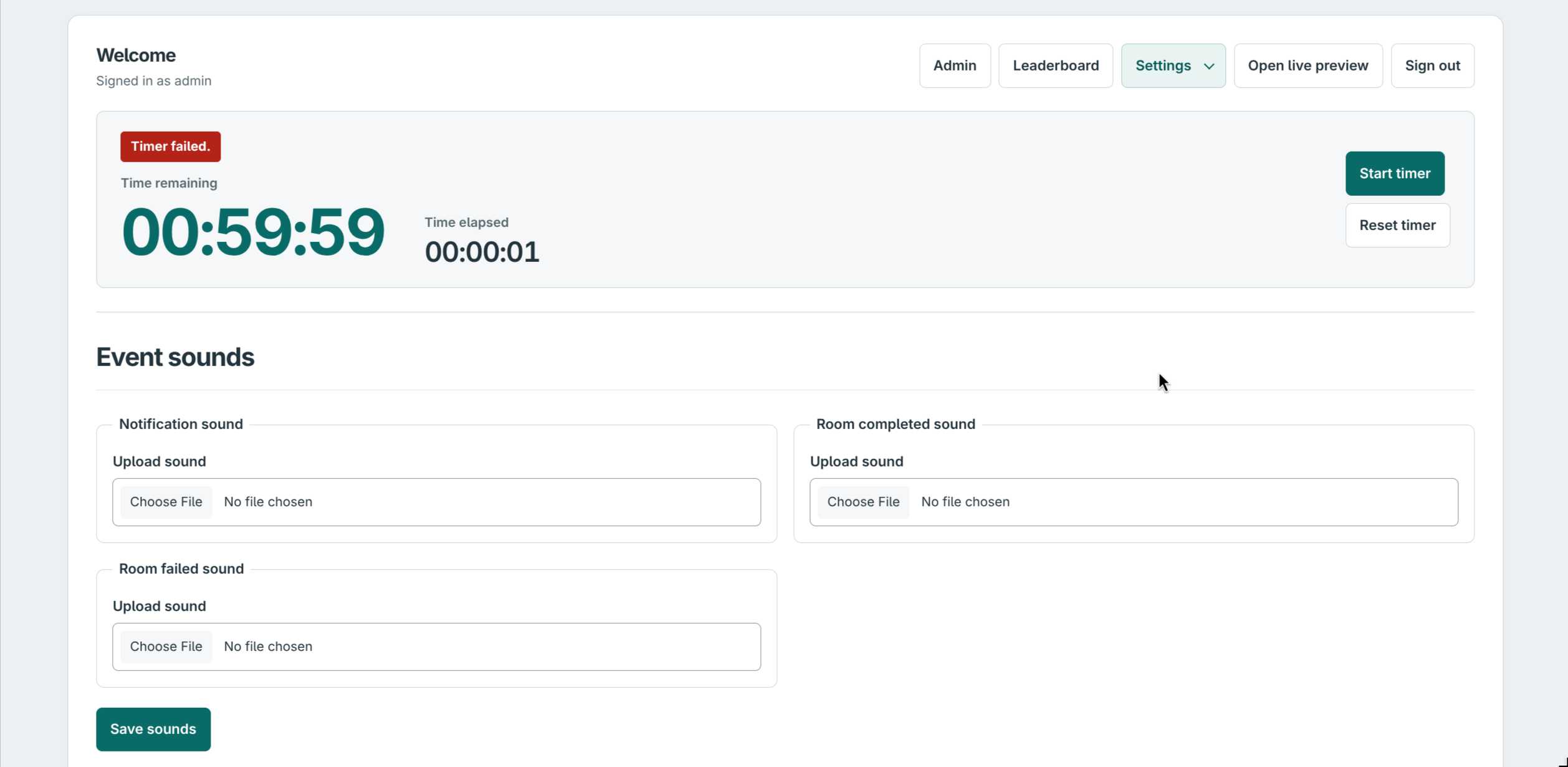
Give notifications, completed rooms and failed runs their own audio.
Explore the controls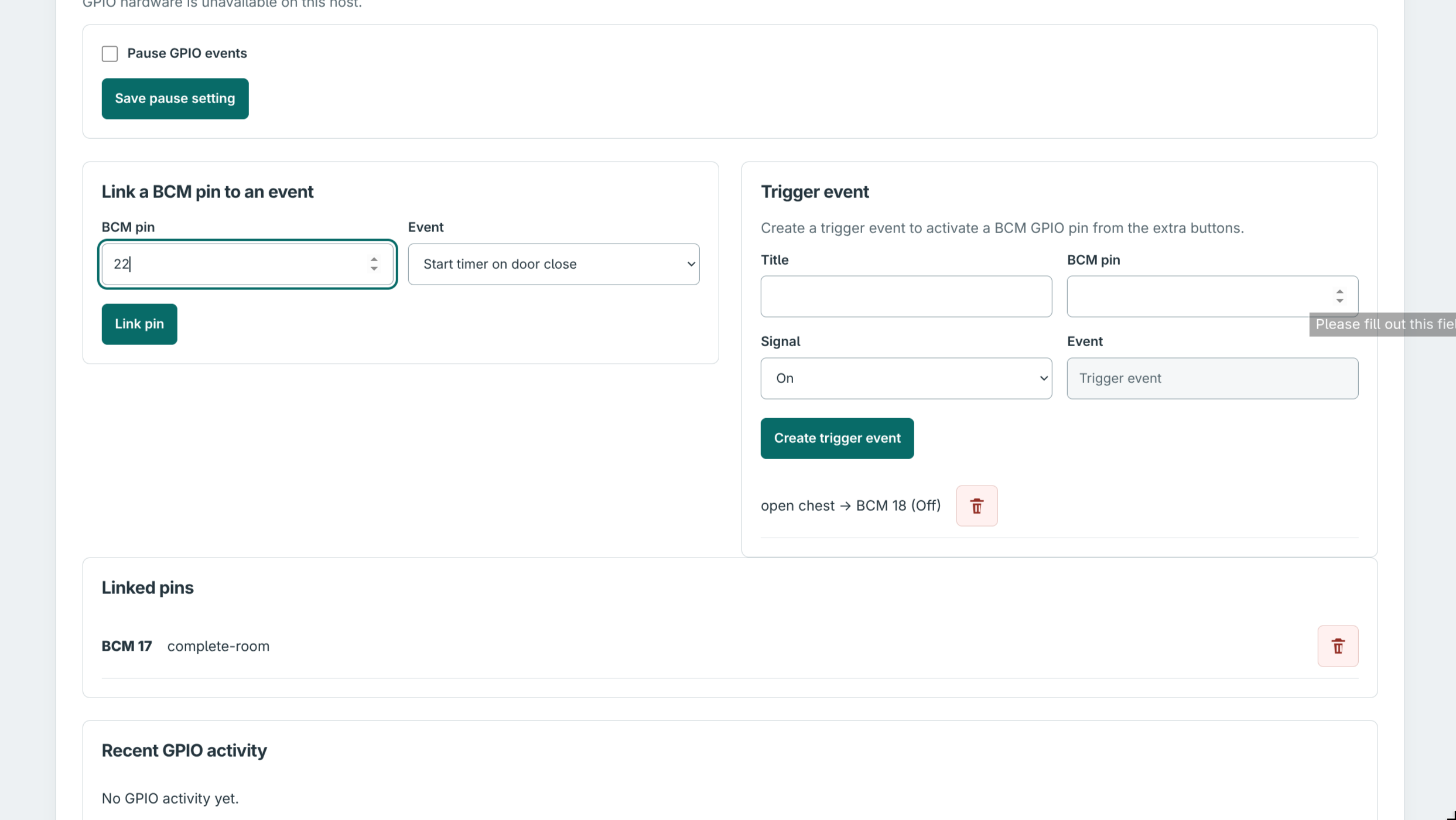
Link physical inputs to game events and create staff buttons for suitable GPIO outputs.
Explore the controls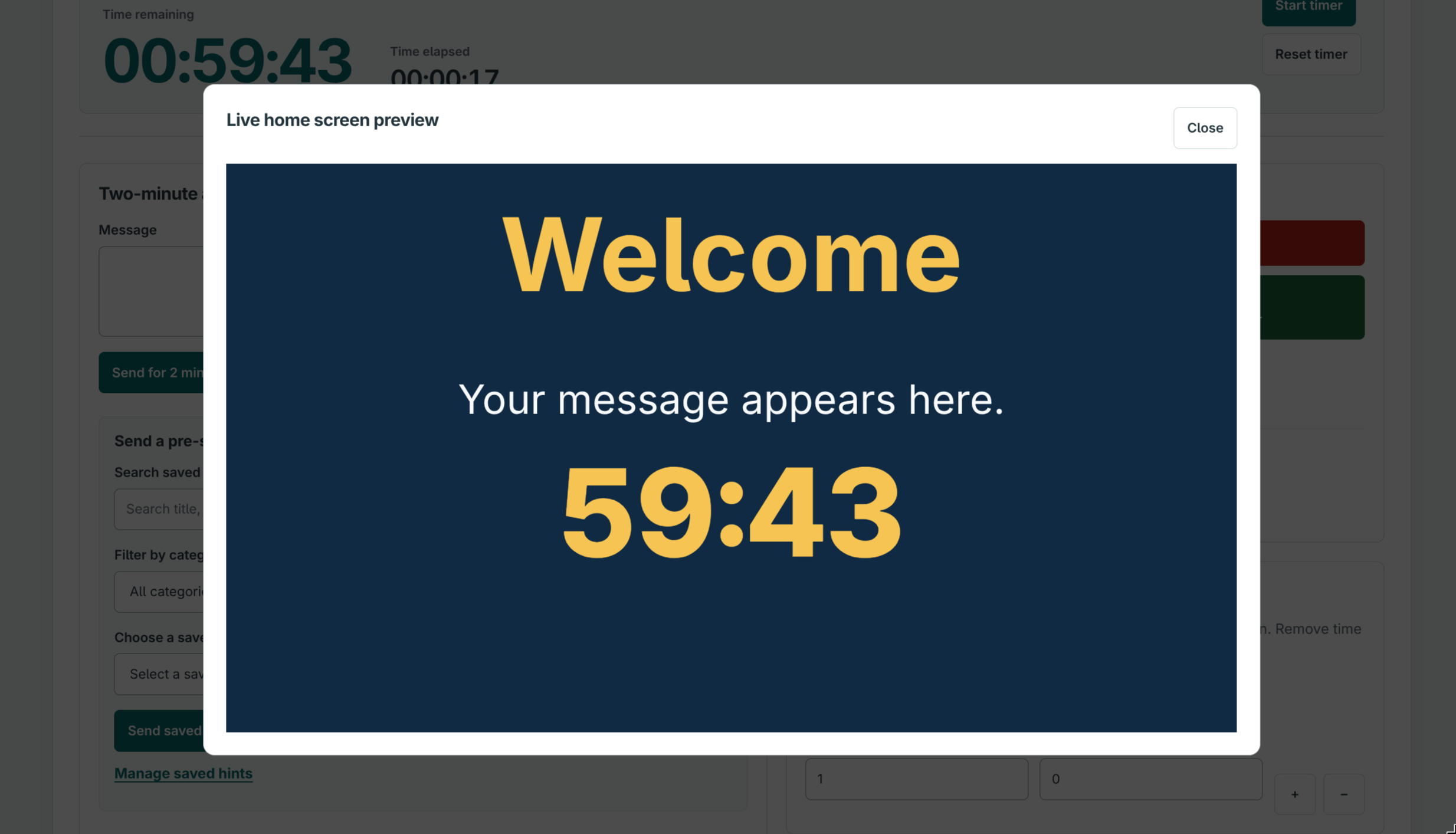
See the current player display from the staff panel without leaving your control room.
Explore the controls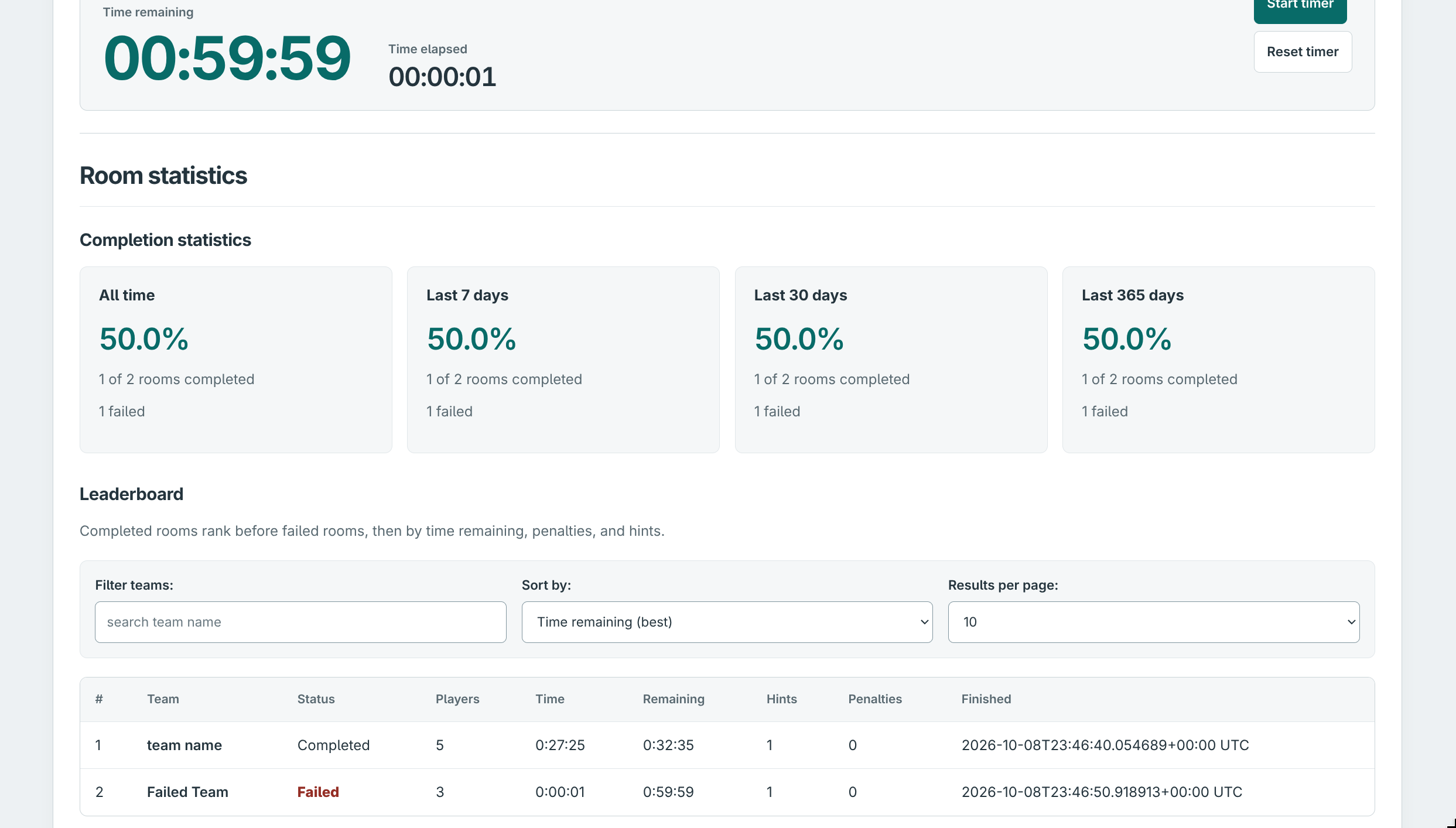
Review recorded results, completion rates, hints and penalties, with team filters and sorting.
Explore the controlsMAKE YOUR FIRST RUN A CONFIDENT ONE
A screenshot-led guide from preparing your clues to saving the team’s result.
Read the room guide02 / FROM BENCH TO ROOM
Start small, then connect the pieces. Our guides take you from a fresh SD card to a screen that starts itself.
Build your Pi kioskPrefer a laptop? There’s a guide for that, too.
03 / PICK YOUR STARTING POINT
You don’t need a Pi to try it. Run the screen on Windows, Linux or macOS, open the admin panel, and get a feel for your next game.
Choose your install guideA LITTLE SUPPORT GOES A LONG WAY
If ORBPuzzles makes your room a little easier to run, you can help support its development with a coffee. Completely optional — the guides stay open to everyone.
Donate on Ko-fiThe donation form is provided by Ko-fi. If it doesn’t load, use the button to open Ko-fi in a new tab.